
Sort and Cut Colors
The Job Palette is located on the right ride of Vision Expert and Vision Pro.
Sorting and cutting all colors is an available option in the cut tool box, instead of just cutting one color at a time, you can select what colors to cut in a specific order, with a pause in between each color change.
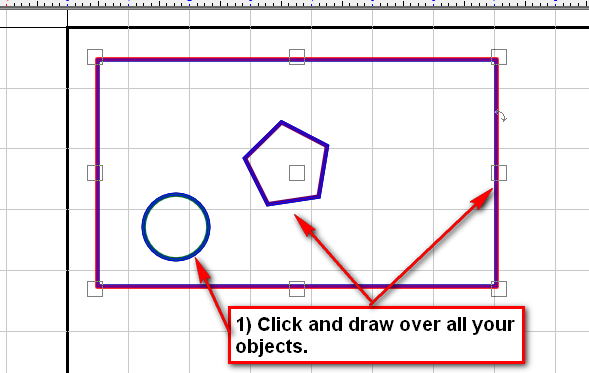
- Click and drag over all the colors.
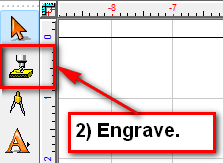
- Side menu tool bar, select “Engrave”.
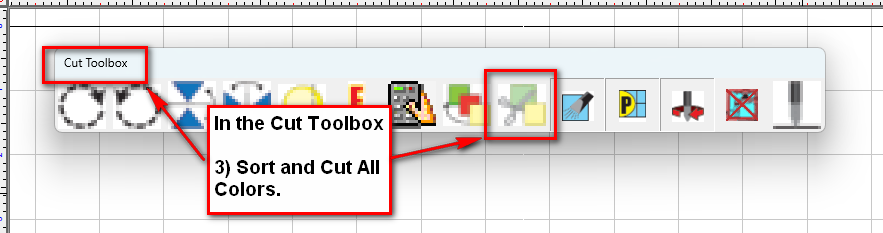
- In the cut tool box, select “Sort and Cut All Colors”
- Make the colors “Active” to cut.
- Click and drag in the order of cut.
- Select “Engrave.”
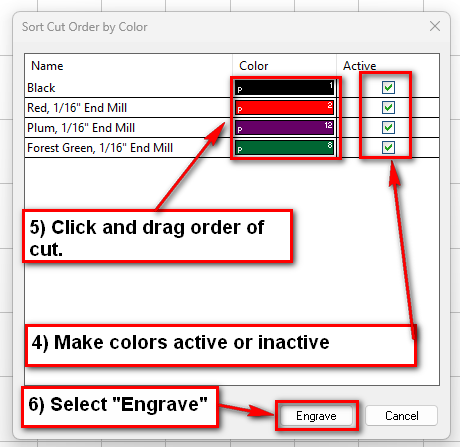
Sorting and cutting all colors is available within the Cut Toolbox. Instead of processing one color at a time, you can choose multiple colors and define the exact order in which they are cut, with an automatic pause between each color change for tool changing.
We can now view our Job palette to see all the active colors.
Check back next month for more Engraving Quick Tips. Contact Vision Engraving & Routing Systems to learn more about how to sort and cut colors in Vision Engraving & Routing Software, or to request a free online engraving demo. Visit us online today at www.visionengravers.com or call 1-888-637-1737.